

Evoto AI Review (2026): My Real Retouching Workflow for Fashion & Beauty Photography
Evoto has recently become one of the AI retouching tools I reach for when I need speed, consistency and clean results - without living in Photoshop all day. In this review, I’ll share from my experience what Evoto is genuinely great at, where it struggles, and how I build it into a workflow that still keeps skin looking like… skin.
Quick summary
Evoto is best for: fast portrait and full-body clean-up, background clean-up, hair flyaway control, and batch editing when you have a high volume of images.
Evoto is not ideal for: extreme close-ups where the face isn’t fully visible (face detection can fail), ultra high-end skin texture work, and product photography retouching.
My verdict: a brilliant time-saver when used selectively - but I still often finish images with some manual polish.
What is Evoto, and how does it work?
Evoto is an AI-powered photo editing and retouching app with a broad toolkit: skin clean-up, hair editing, make-up enhancements, body/facial reshape options, clothing tweaks, background clean-up, colour tools - all in one interface.
Credits & exporting (important!)
Evoto uses a credit-based export system. In practice - you spend credits when you export the final image (watermark-free), not while you’re editing and previewing.
One key thing to remember about Evoto credits:
If you export an image and later decide to make further adjustments within Evoto, then export the same image again without re-uploading it, Evoto will only charge one credit.
However, if you export the image, then do additional work in Photoshop/any other editing software, and later re-upload that file back into Evoto for further retouching, exporting it again will consume another credit - even if it’s essentially the same image.
👉 My advice: finish all your Evoto editing before taking the image anywhere else. Once you start working on an exported file outside Evoto, any return trip back will cost you extra credits. It’s a small thing but it can save you quite a few credits over time.
How I incorporate Evoto into my retouching workflow
I prefer doing all colour correction in Capture One first. Once I’m happy with colour and exposure, I export my selects and bring only the relevant images into Evoto - usually these are portraits and full-body shots.
Here’s how I approach Evoto, step-by-step:
1) Skin clean-up
I start with Blemish Removal and Skin Retouching. I never push sliders to 100% - for natural results, I keep it subtle and adjust image-by-image, always comparing before/after.
2) Eyes, teeth, hands (small tweaks that make a big difference)
If needed, I add a touch of brightness in the Eyes section, lightly whiten/straighten in Teeth, and if hands are visible I’ll check Hands too. These tiny adjustments can be surprisingly effective when kept gentle.
3) Hair (my favourite section)
The Hair tools are one of the biggest time-savers for me: removing stray hairs and subtly improving shape/volume can take seconds instead of a long manual clean-up pass.
4) Background adjustment
For studio work, Background Adjustment is a lifesaver. I often use tools like Distraction Removal and Backdrop Clean-up to tidy a background in seconds. It’s not perfect 100% of the time, but it gets you most of the way there and if anything looks odd, I’ll finish in Photoshop.
5) Clothing & accessories
If clothing needs help, I’ll check Clothes & Accessories Adjustment for small fixes: reducing minor wrinkles, removing dust marks, smoothing edges. Again: not always perfect, but it often saves time before manual retouching.
What Evoto is especially great at (my highlights)
I’ll skip the obvious “it removes blemishes” because most AI tools can do that now . Here are the features I genuinely love Evoto for:
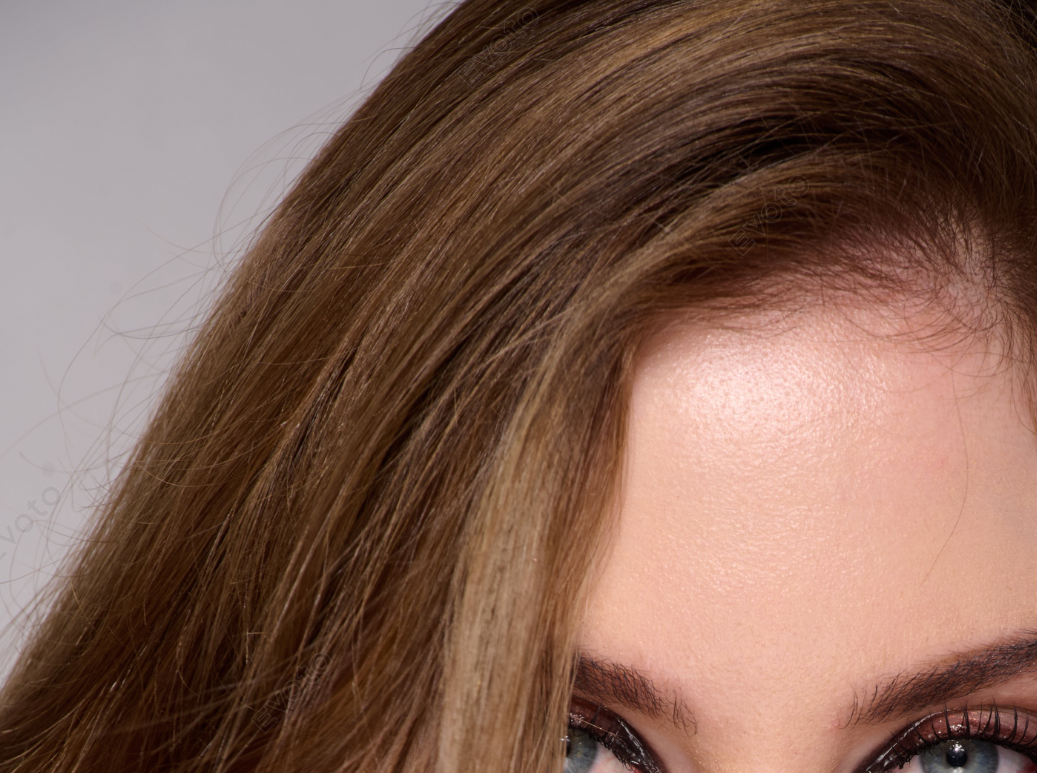
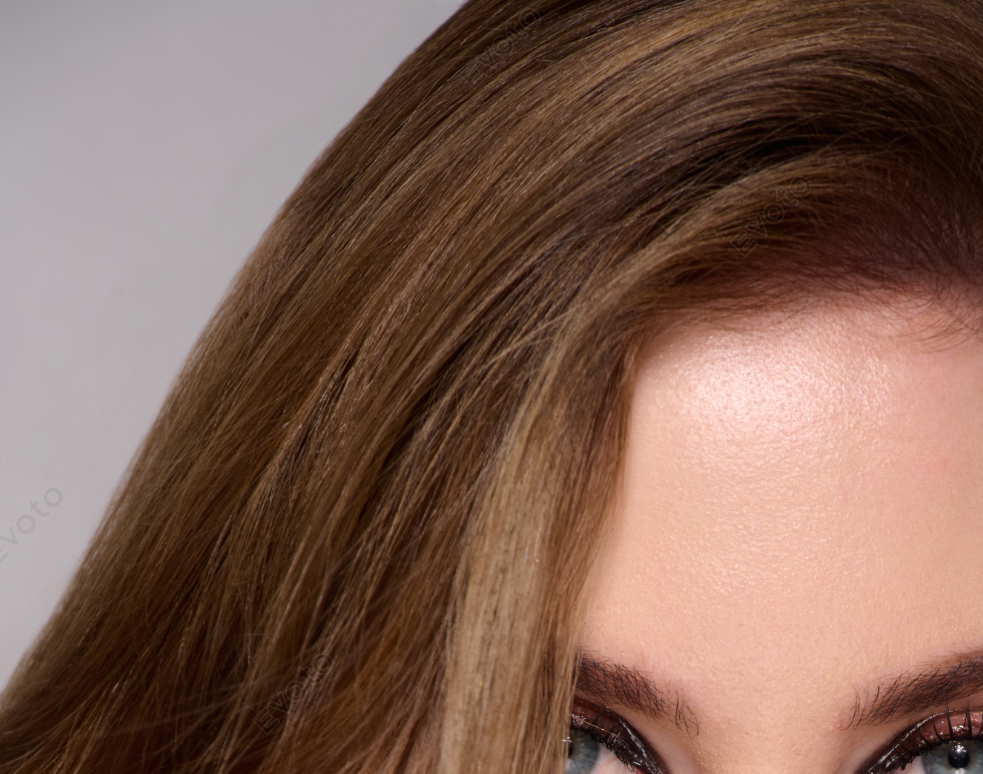
1) Stray hair clean-up (and refining part lines)
This is the “two clicks and done” category. For most portraits and full-body images, it’s a massive time-saver. If it’s a beauty close-up, I might refine the hairline manually but for most commercial work, it’s more than good enough. By the way, it can clean up hair both within the subject (for example on the face or body) and outside the subject, such as flyaway hairs.
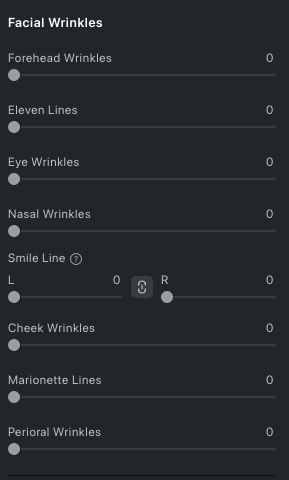
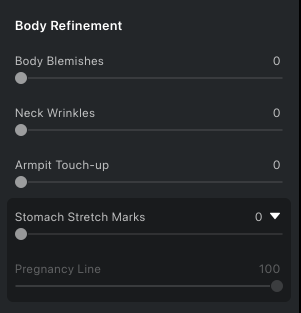
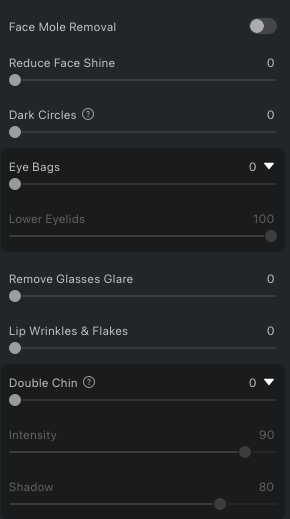
2) Detailed control over facial wrinkles and body blemishes
Evoto gives surprisingly targeted options across different areas of the face and body. Used lightly, it can reduce distracting lines without turning someone into a blur.
3) Skin tone balancing
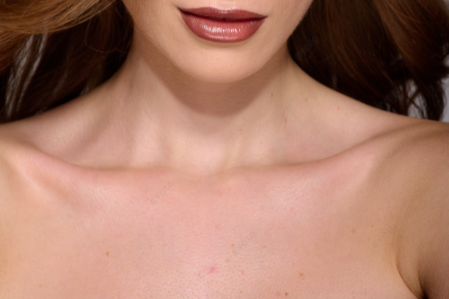
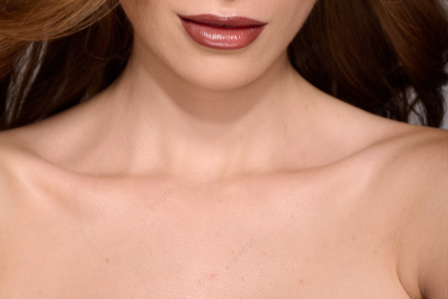
This is genuinely useful for both - full body shots and portraits. If hands/legs are a bit red, or the neck doesn’t match the face, Evoto can help balance tone faster than doing everything manually from scratch.
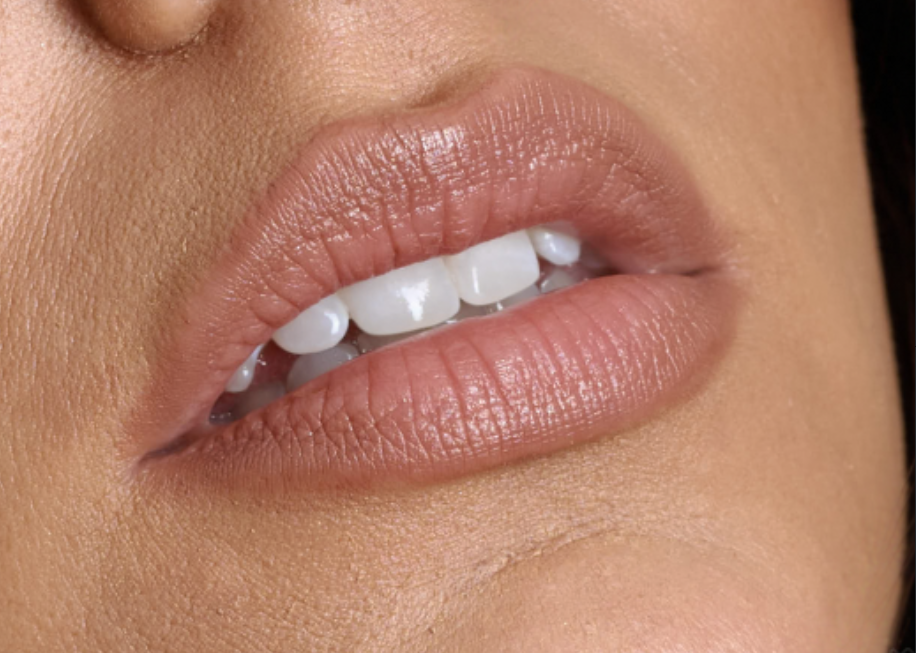
4) Teeth improvements
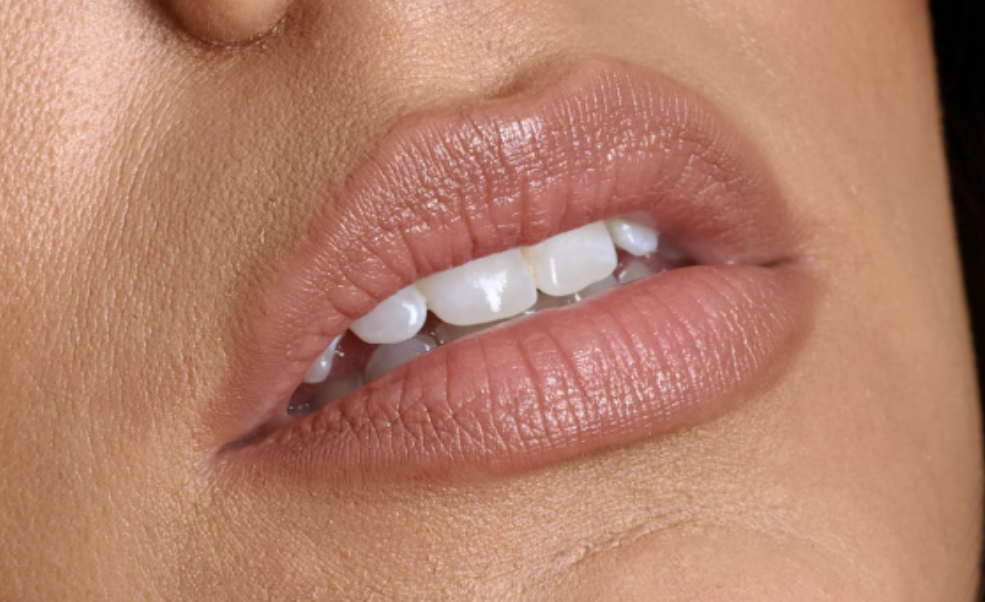
The teeth tools are quick and effective when used subtly. They not only whiten teeth, but can also straighten them slightly and apply light retouching.
5) Backdrop clean-up
For plain backgrounds, this is a gem. Dust, marks, unevenness, random objects - all fixed in seconds. If you shoot a lot in a studio, you’ll understand why I’m SO excited about this.
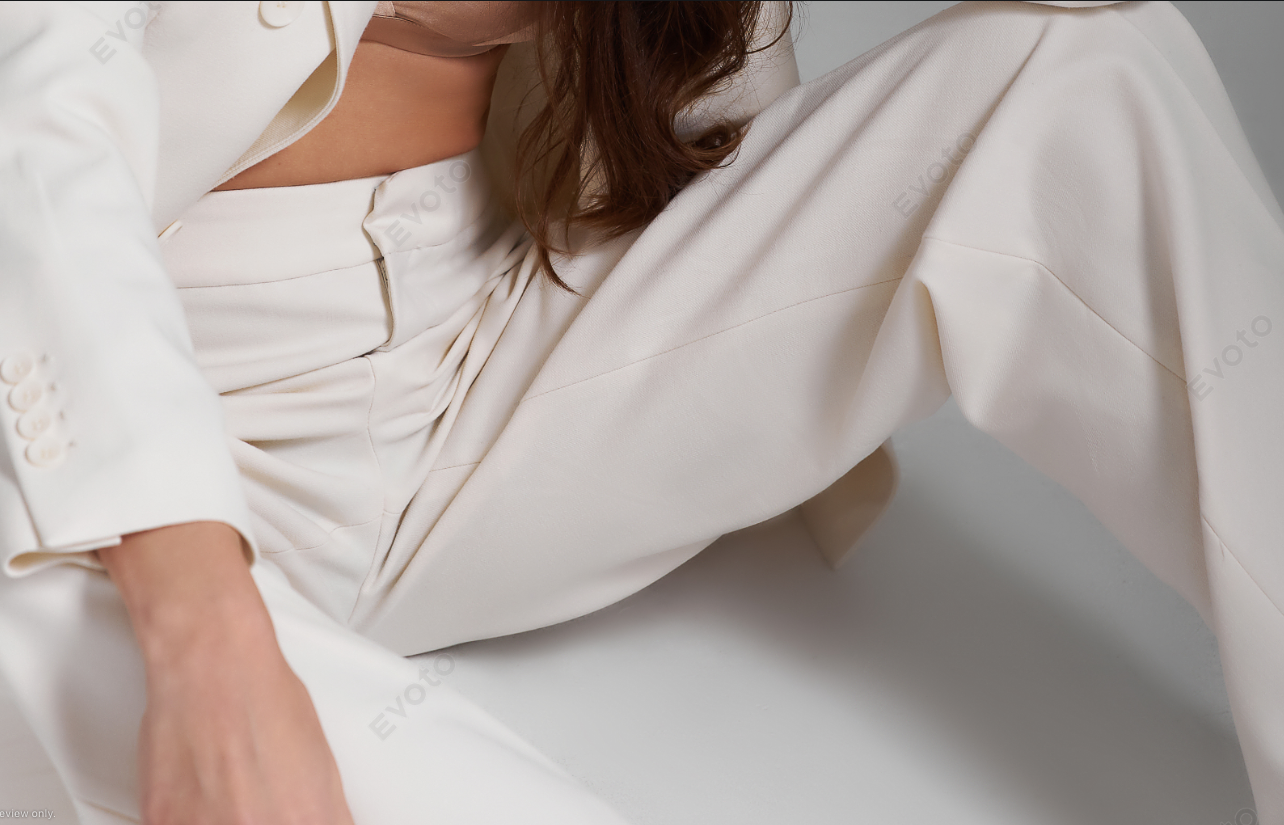
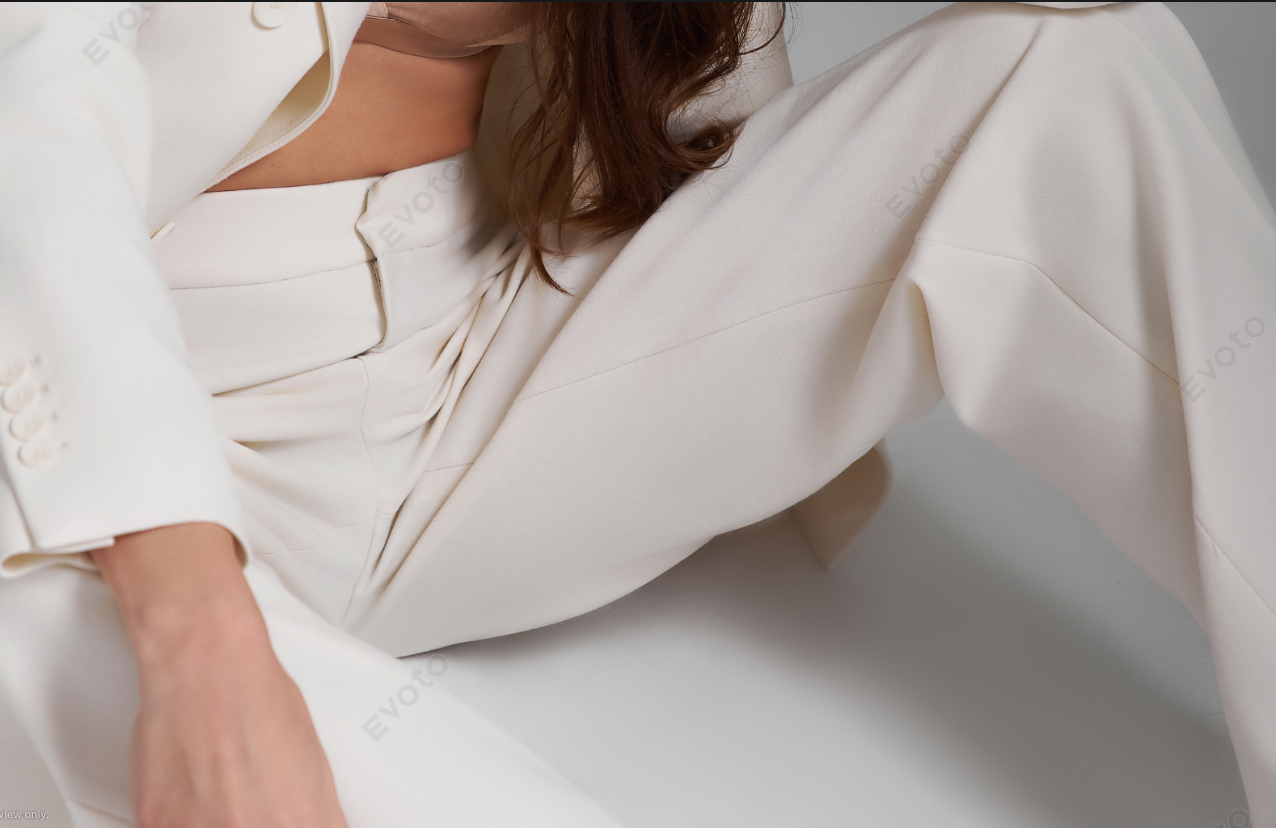
6) Clothes adjustment (small fixes though, not miracles)
I’m sure you’ve heard this from clients as well: “Can we iron it in post?” While Evoto won’t fix everything, it does an excellent job with small wrinkles, dust removal, and edge smoothing.
7) Presets + batch editing (the productivity gem)
If you’re editing a series, you can apply settings to one image and sync them across the rest. You can also save presets with your settings for future shoots.
Important: just like proofreading a ChatGPT text (👀), always review the batch results image-by-image to make sure nothing strange happened because it can 😂 As an example, on some photos Evoto actually removed nostrils on my model 🤪 Creative!
Evoto’s limitations
1) Face detection can fail on close-ups
I often shoot jewellery-on-model close-ups where the face isn’t fully visible. In those cases, Evoto may not recognise the face properly, and face-based skin tools become unreliable. It can also happen with partial profiles or when hair covers facial landmarks.
Evoto does offer manual face detection options, but in my experience it’s not always consistent, so sometimes Photoshop is still the quickest fix.
2) face skin retouch can still look a bit “too smooth”
This is the biggest issue across most AI retouching tools: skin can drift into a soft, slightly blurred look, especially on closer portraits or images that weren’t tack sharp.
My solution: keep skin tools around 40–50%, then finish with a light manual retouch in Photoshop to preserve texture.
3) Detail recognition isn’t perfect (and masking is limited)
Sometimes a skin tool can smooth areas you don’t want smoothed and there is no mask tool to avoid those areas. But I fix that with masking in Photoshop👌
4) Credit-based exporting can be costly for high volumes
This is personal preference. If you edit hundreds of photos regularly, credit-based exports can add up, especially if you re-upload and re-export images (which happens to me from time to time).
On the flip side, if you only use Evoto occasionally or for smaller batches, credits can be a flexible and cost-effective option compared to software you pay for monthly and don’t fully use.
Summary: would I recommend Evoto in 2026?
When I first tried Evoto in 2025, I had no big expectations, then it unexpectedly became one of my go-to tools for a huge part of my retouching. The feature development is fast, quality keeps improving, and for my fashion/beauty workflow it genuinely saves time.
If you’re a photographer (or you’re new to retouching altogether), I’d absolutely recommend trying it and seeing if it fits your goals?! There’s a good chance it becomes your little editing assistant, especially when you want speed and consistency without sacrificing a professional look.
If you’d like to try Evoto, I have a personal link (https://link.evoto.ai/jana) for my readers that includes a free trial and a bonus 15 credits (15 watermark-free exports) as a welcome gift💝 And if you decide to purchase more credits, you can use my Evoto promo code for a discount up tp 20% - JANA20
FAQs
Does Evoto replace Photoshop retouching?
Definitely not at this stage (January 2026). It’s excellent for fast clean-up, but high-end skin texture control and precision work still benefit from manual retouching.
How do Evoto credits work?
Credits are used when exporting images watermark-free. You can edit and preview first, then spend credits on export.
Why does Evoto sometimes fail on close-ups?
If the face isn’t fully visible, face detection can struggle and face-based tools become unreliable. Try manual face detection, and if it still doesn’t work, classic editing in Photoshop is the solution.
How do I avoid “plastic skin” with AI?
Use lower intensity on skin tools and constantly compare before/after.
Is Evoto good for batch editing?
Yes, it’s perfect for that. Evoto works while you drink your coffee. Editing sync and export are impressively quick - my coffee takes far longer, haha 😝
